How Do I Customize Date and Time Format to be Different than that Defined on Magic Form? (Magic xpa 4.x)
You can specify a different format than the one define on Magic form of a Web Client task. It is possible by removing the mgFormat tag from the generated HTML.
Customizing Date Format
If you need to use any other format than the ones on Magic xpa's forms, you can change it from Angular component.
Here is how you can change the Date format:
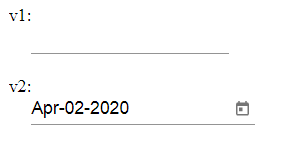
1. Create a Web Client application named Test1 having a Date variable with format ‘MMM-DD-YYYY’.
2. Generate the application.
3. In generated component folder, the file test1.component.ts contains:
|
export class test1 extends TaskBaseMagicComponent {
mgc = MgControlName;
mgcp = MgCustomProperties;
mgfc:MgFormControlsAccessor;
createFormControlsAccessor(formGroup: FormGroup) {
this.mgfc = new MgFormControlsAccessor(formGroup, this.magicServices);
}
}
|
4. Also see the following code in file test1.component.html for Date Picker:
|
<input
matInput
[matDatepicker]="v2"
[magic]="mgc.v2"
[formControlName]="mgc.v2"
mgFormat
>
|
This is how the form displays Date when you have not removed mgFormat:
5. Now since you need to use a different format than the one specified on Magic xpa form, you need to carry out the following two steps:
i. Remove mgFormat tag from the file test1.component.html for Date Picker.
|
<input
matInput
[matDatepicker]="v2"
[magic]="mgc.v2"
[formControlName]="mgc.v2"
>
|
ii. Override the method setInputDateFormat() in the file test1.component.ts as follows:
|
export class dateprg2 extends TaskBaseMagicComponent {
mgc = MgControlName;
mgcp = MgCustomProperties;
mgfc:MgFormControlsAccessor;
createFormControlsAccessor(formGroup:FormGroup) {
this.mgfc = new MgFormControlsAccessor(formGroup, this.magicServices);
}
setInputDateFormat() {
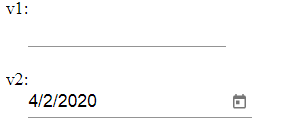
this.magicServices.task.mgInputDateFormat = "M/d/yyyy";
}//use any supported format here.
}
|
6. After removing the mgFormat tag, you can see the resulting Date format as follows:
Customizing Time Format
Similar to Date formats, Magic xpa supports two formats for time in Web Client tasks. They are: ‘HH:MM:SS’ and ‘HH:MM’.
Magic xpa Web Client form displays Time field with default format ‘HH:MM:SS’…
For Time part, the generated HTML is as follows:
|
<input
matInput
type='time'
step=1
[magic]="mgc.v3"
[formControlName]="mgc.v3"
>
|
If you want to remove the Seconds (SS) part from the Time format, you need to remove the line
‘step=1’ from the generated HTML.
If the Time format on Magic xpa form is ‘HH:MM’ and if you want to add Seconds (SS) to it, then you need to add the line ‘step=1’ in HTML to display the same.
|

|
· It is possible to support single Date format per component. It means you cannot have two Date pickers showing two different formats in the same component. But the Main form and the Subform can show two different date formats.
· In Magic xpa, the supported formats are:
o Date: dd,mm, mmm, mmm…, yy, yyyy, WWW, and WWW... .
o Time: HH:MM:SS and HH:MM.
· The unsupported Date formats in Magic are: DDD, DDDD, and W.
|
Since version: 4.7
The supported date formats in Angular are: https://docs.angularjs.org/api/ng/filter/date
